Trend Explorer
Recent download momentum
Hourly download deltas for the last 48 hours.
About this addon
What it does
Want to be productive while playing WoW? Got an exam coming up and you need to memorize a bunch of stuff last minute? This addon is for you.
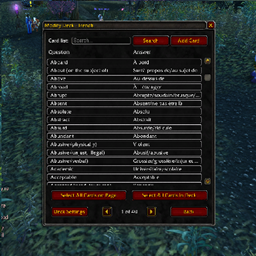
ProductiveWoW allows you to create decks of flashcards which you can quiz yourself on to memorize stuff quickly. If you are familiar with the flashcard application Anki, then you can also export basic text-based decks from Anki and quickly import them into ProductiveWoW.


Please leave a comment here on feedback!
Github: https://github.com/Tuzric/ProductiveWoW
This is release 1.3.4 with the following features:- Create decks of up to thousands of flashcards that persist between characters and login sessions
- In-game GUI to add, modify, delete, and search through decks and cards
- Ability to bulk import cards from Anki and also you can ask an AI to generate flashcards in the format required based on what you are studying. Import 1000s of cards instantly
- Algorithm prioritizes difficult cards that you have trouble with
- Set reminders to study based on in-game events such as turning in quests
Installation:
Through CurseForge Desktop app:
- Search "ProductiveWoW" in CurseForge
- Click install for the version of the game you want
Manual download:
- Download the .zip file
- Go to your World of Warcraft installation folder then to the version of the game (e.g. classic, retail, etc.) then to Interface > AddOns and paste the .zip file in there.
- Extract the contents of the .zip file
- Make sure there is one folder called "ProductiveWoW" containing the scripts. If you extract the .zip there might be 2 nested folders called "ProductiveWoW"
- Load the game up and see if it appears in the list of AddOns. Use /fc, /flashcard, /flashcards, or /productivewow to open the main menu.
In case it says "addon is outdated"
- It's most likely not, just the interface version is outdated
- To fix this, you can go to the Interface > AddOns > ProductiveWoW folder
- Open the .toc file in Notepad or a text editor
- For Retail it's ProductiveWoW_Mainline.toc
- For Mists of Pandaria it's ProductiveWoW_Mists.toc
- For Vanilla it's ProductiveWoW_Vanilla.toc
- Login to the game
- In the chatbox type in the command
/dump select(4, GetBuildInfo()) - You might get a confirmation box asking you to confirm if you want to run scripts, click "Yes"
- You might need to type in the command again
- It will print the interface version number
- Replace the value of the interface version in the .toc file (the very first line that says "Interface: ") with the value you obtained from the command
- Type /reload in-game to reload the interface and addons and now it shouldn't say it's outdated anymore
Basic instructions:
- Use /fc, /flashcard, /flashcards, or /productivewow to open the main menu.
- Create a deck either manually, regular bulk import, or Anki bulk import
3. Press the Escape key to exit any menu
Creating a deck by importing an Anki deck:
Video guide (1 min 40 sec): https://www.youtube.com/watch?v=ZfPMcc0RIjI
Your Anki deck has to be a plaintext file (.txt) where the question and answer are separated by a Tab character, and each new question is separated by a newline character (Enter key). If you use Anki Desktop's export feature, this will be the default format it's exported in so you won't need to do anything.
Note: right now you should only export basic Anki cards that have a front and a back. Anki Notes with additional fields currently can't be imported unless you delete the additional fields from the .txt file (again you can use an AI like ChatGPT to quickly delete them).
- Open your Anki desktop app
- Hover over the deck you want to export, click the "Settings" gear icon
- Choose "Export"
- Choose "Export Format" as "Cards in plaintext (.txt)"
- Uncheck "Include HTML and media references"
- Click "Export" and save it somewhere
- Open the saved file
- Ctrl+A to select the entire file's contents and Ctrl+C to copy it
- Go to the ProductiveWoWDecks.lua file in your AddOns > ProductiveWoW folder
- Scroll close to the bottom of the file to find the ankiDeckName variable
- Type in the name of the deck you want the flashcards to be imported to (if you already have an existing deck, then it will simply add in the additional cards and if you don't have a deck by that name, it will create a new deck)
- Paste the entire contents of the exported Anki .txt file in between the 2 square brackets of the ankiContents variable:
- Reload the addon by reloading the game or typing /reload in-game
- Check that the cards and deck was imported successfully (you will see in the chatbox how many were imported)
- Go back to the ProductiveWoWDecks.lua file and delete the contents of the ankiContents variable and ankiDeckName variable so that they look like this again:
- Once the cards are imported, they will stay in your account across characters. The reason you want to clear the variables is because everytime you login or reload the addon, it will re-import the cards from this file. Which means if you modified or deleted a card then it will just add the card back in again. Don't worry though because if you forget to clear these variables, you will get a warning in the game chat if you attempt to delete or modify one of its cards.
Creating a deck manually:
- Click "Create Deck" to create a new deck
- If you'd like to delete a deck later on, click "Delete Deck" from the main menu and type in the name of the deck you want to delete
- In the main menu, choose a deck from the dropdown
- Click "Modify Deck"
- Click "Add Card"
- Type in a question/answer then press "Add". You can also select a "Card Type"
- Basic = flashcard question will be shown and you will have to press a button called "Show" to see the answer
- Type in Answer = flashcard question will be shown and you will have to type in the answer and click "Submit" or give up and press "Show" (answers are case insensitive)
- Click "Back" and you can verify in the "Modify Deck" menu whether the card was added. It should be in the list there.
Creating a deck by regular bulk import:
- Go to your AddOns folder then the ProductiveWoW folder
- Open the ProductiveWoWDecks.lua file with a text editor of your choice (e.g. Notepad)
- Find the variable called ProductiveWoW_cardsToAdd, it will be filled out with an example by default showing the capitals of the world. Follow the format of the example to add your flashcards.
- This is the format:

- A quick way of doing this is to use an AI such as ChatGPT. Copy and paste your topic or study notes into ChatGPT and then tell it to (you can literally copy and paste the following prompt): "Make flashcards in the form of a Lua table with the following format: ProductiveWoW_cardsToAdd = {["Deck Name"] = {["Question 1"] = "Answer 1", ["Question 2"] = "Answer 2"}}"
- Save the file
- Inside the game, type in /reload in the chatbox to reload the addon or just re-log into the game
- Check that your deck is loaded by seeing if it's in the "Choose deck" dropdown
- Once you've confirmed it's loaded successfully, go back to the ProductiveWoWDecks.lua file and delete the contents of the ProductiveWoW_cardsToAdd table so that it looks like below:
- Once the cards are imported, they will stay in your account across characters. The reason you want to clear the variable is because everytime you login or reload the addon, it will re-import the cards from this file. Which means if you modified or deleted a card then it will just add the card back in again. Don't worry though because if you forget to delete the deck from this file, you will get a warning in the game if you attempt to delete or modify one of its cards.
Playing your deck
- Once you've added all the cards you want, go to the main menu, and click "Go" to begin the quiz
- Click "Show" to show the card's answer or if it's a Type in Answer card, then type in the answer and click "Submit"
- If you clicked "Show", click "Easy", "Medium", or "Hard" based on how difficult you found the question
Deleting a card
- To delete a card, go to the "Modify Deck" menu, find the card in the list or search for it using the search bar, right click on it, and press "Delete Card". If it doesn't work, pay attention to the chat, it will say what the problem was.
Editing a Card
- To edit a card, go to the "Modify Deck" menu, find the card in the list or search for it, right click on it, and press "Edit Card". If it doesn't work, pay attention to the chat, it will say what the problem was.
Deleting Multiple Cards at Once
- To delete multiple cards at the same time, go to "Modify Deck", left click on each one to select multiple of them. They should now be highlighted blue, right click on any of the selected cards and choose "Delete All Selected Cards", in the confirmation dialog box, choose "Yes"
Changing the Daily Card Testing Limit
- To choose how many cards you want to be tested on per day for a deck, go to Modify Deck > Deck Settings and change the max daily cards setting. If you want no limit, just set it to a really high number
Changing Flashcard Font Size or Window Size
- Go to the main menu
- Click "Settings"
- Change the flashcard font size setting
- Change the flashcard width and height settings
- Click "Save"
Changing the List of Cards Row Size
- Go to the main menu
- Click "Settings"
- Change the row scale setting
Setting Deck Reminders
- Select the deck from the main menu dropdown
- Click "Modify Deck"
- Click "Deck Settings"
- Select 1 or more in-game events to trigger a deck reminder
- Go to the main menu
- Click "Settings"
- Ensure that the "Toggle deck reminders" setting is enabled
- When the event occurs (e.g. completing a quest) you will get some red text in the chat to remind you to play the deck.
Reversing Flashcard Question/Answer
- Go to the main menu
- Click "Settings"
- Check the "Reverse question/answer" checkbox
Changing the Card Type of Many Cards at Once
- Go to Modify Deck
- Select all the cards you want to change by left clicking on them in the list or clicking "Select all cards on page" or "Select all cards in deck"
- Right click on any of the selected cards
- Choose "Bulk Edit"
- In the bulk edit window, choose the card type you want to change them to from the dropdown
- Click "Save"
Resetting Addon Data
- To completely reset your data and start fresh, in the addon folder, open ProductiveWoW.lua, at the top change the variable called "resetSavedVariables" to "true" (without the quotation marks), save the file. Go back in-game and type in /reload to reload the addon, change the resetSavedVariables variable to false again, save the file, go back to the game and type in /reload to reload the addon again.
At-a-glance numbers
Performance highlights
- Peaked at Hot #2887 on May 6, 2026.
- Peaked at Rising #4453 on May 18, 2026.
- Featured on the Hot list across 4 distinct weeks.
- Shipped 1 release in the last 30 days.
Visuals
Screenshots 5
Use real gameplay shots to assess the addon before installing.